1. Open your Netscape Mail and select Edit | Mail and Newsgroups Account Settings.
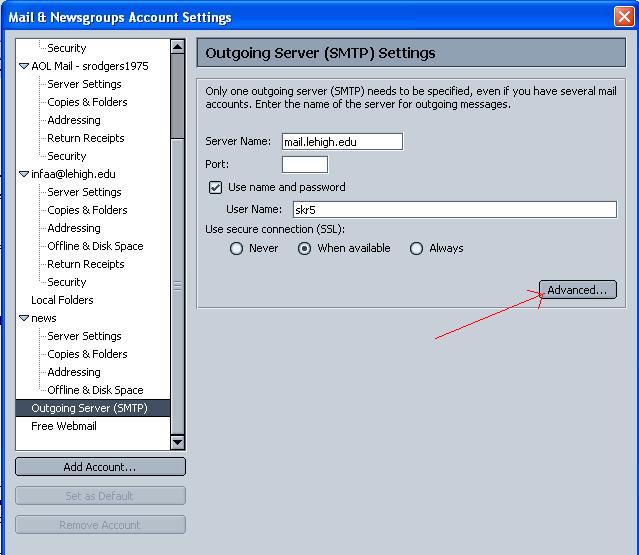
2. On the left side of the window, select Outgoing Server (SMTP). (You may have to scroll down to see it.)
3. With the Outgoing Server highlighted, click on the Advanced... button.
4. In the Advanced Outgoing Server (SMTP) Settings, verify that mail.lehigh.edu is the default server. Also see if the AT&T GlobalNet server is present (smtp1.attglobal.net). If it is listed, skip to Step 2.
5. If the AT&T GlobalNet SMTP server is not listed, press the Add.. button.
6. Enter the server name as smtp1.attglobal.net, remove the port number, and uncheck the box for "Use name and password."
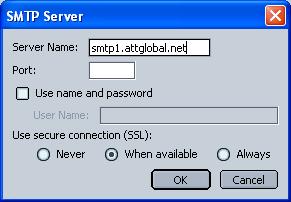
7. Press OK to accept changes.
1. Open your Netscape Mail and select Edit | Mail and Newsgroups Account Settings.
2. Immediately press the Advanced button in the bottom right-hand corner of the window.
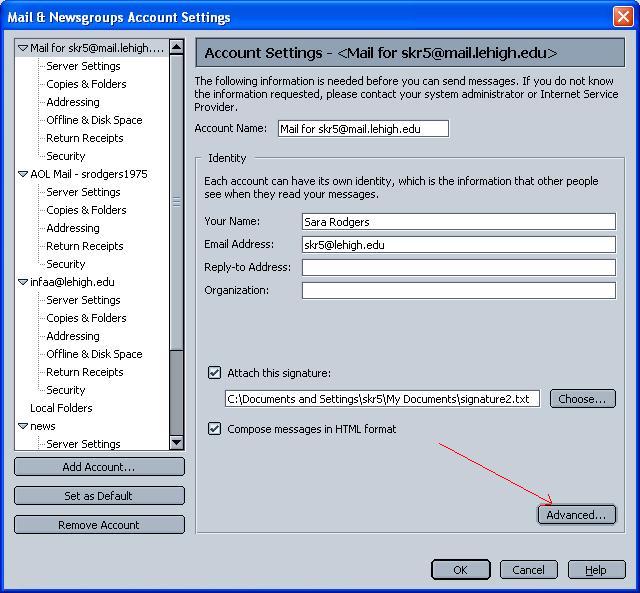
3. In the Advanced Account Settings window, use the pull down menu to select the correct Outgoing Server (SMTP) for your connection.
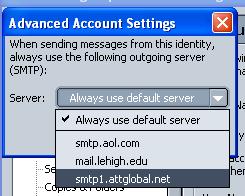
4. Press the OK button to accept the change and press the OK button on the Mail and Newsgroups Account Setting window.