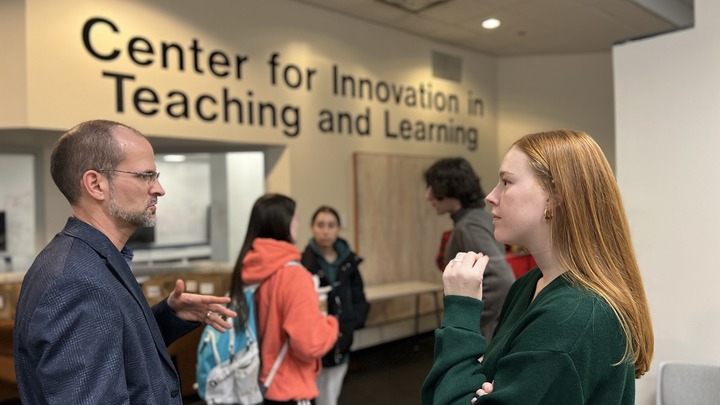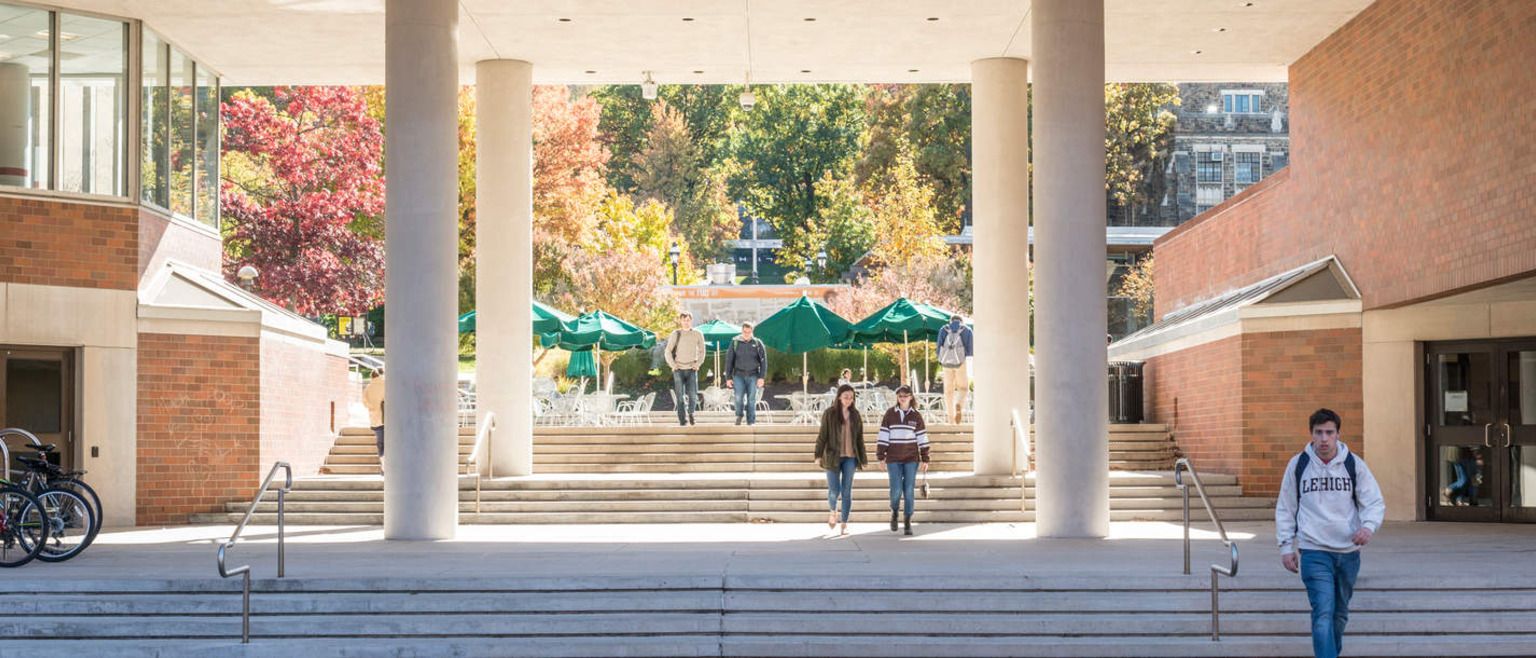
Lehigh's Center for Innovation in Teaching and Learning (CITL) fosters excellence and innovation in teaching, learning, and research by providing faculty and students with development opportunities, teaching tools, course development opportunities, classroom and instructional support, and consultation services.
The mission of Lehigh's Center for Innovation in Teaching and Learning (CITL) is to foster excellence and innovation in teaching, learning, and research by providing faculty and students with development opportunities, teaching tools, course development guidance, classroom and instructional support, and consultation services.
We envision a campus where all faculty cultivate their teaching talents and receive appropriate support, recognition, and reward when they do so. We envision teachers who regularly test out new approaches to instruction and willingly share their experiences with others so all may benefit. We envision faculty, staff, and students working together to create environments in which all students learn.
Our practice is guided by five core beliefs about faculty development:
- Faculty who cultivate their teaching talents are better able to create faculty-student interactions in which both teacher and learner flourish.
- The best form of faculty development takes place when faculty are inspired, not required, to change.
- Authentic, significant, and sustainable change occurs when faculty receive forms of support and guidance that are aligned with their own goals as teachers and scholars.
- No one approach to teaching is the best approach in all cases, for all faculty, for all subjects.
- Educational research should guide the choices we make as teachers, but educational research alone does not answer all of the questions teachers have about their work.
We are also committed to following the Ethical Guidelines for Educational Developers as outlined by the POD Network.
CITL staff, technology, and resources
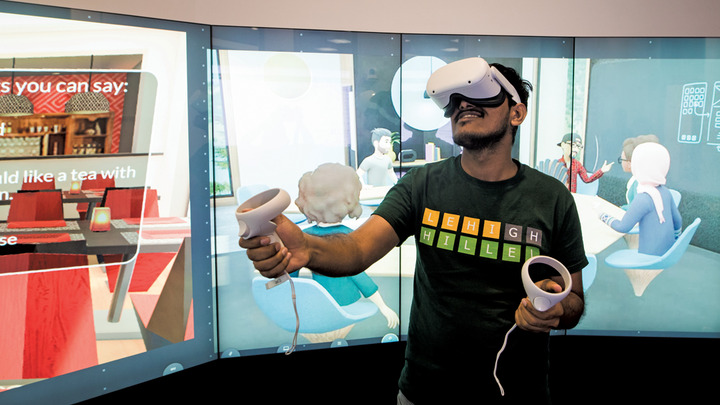
Teach with Technology
CITL provides an extensive array of instructional tools and expertise to enhance teaching and learning.
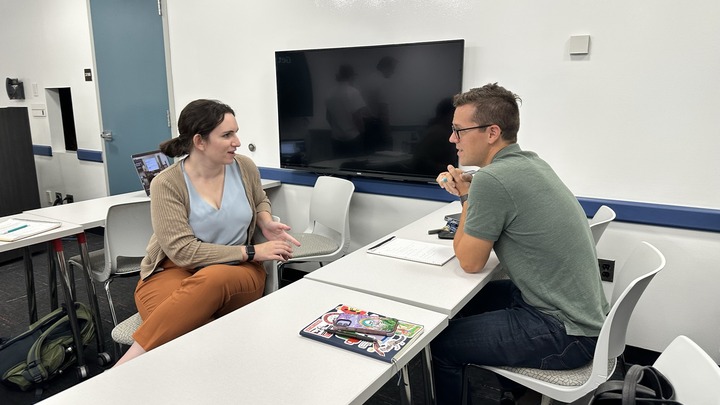
Course Design and Development
Consult with CITL staff on any aspect of your course pedagogy.
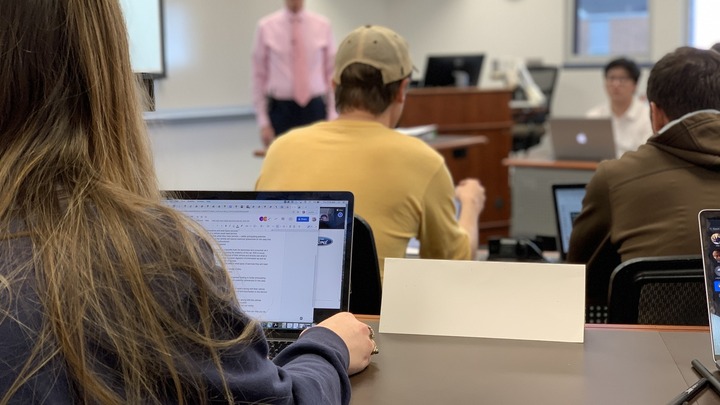
Classroom Pedagogy Resources
Browse our collection of curated teaching and learning resources.
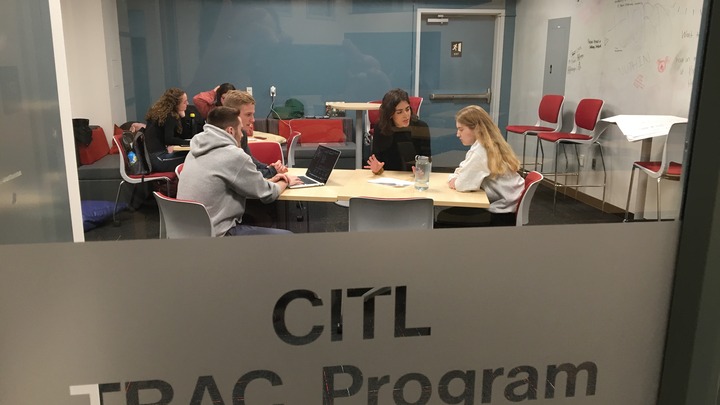
Writing Across the Curriculum
Promoting a campus-wide culture of impactful writing and communication.